Best Free Online Tools Convert WebP to PNG Online
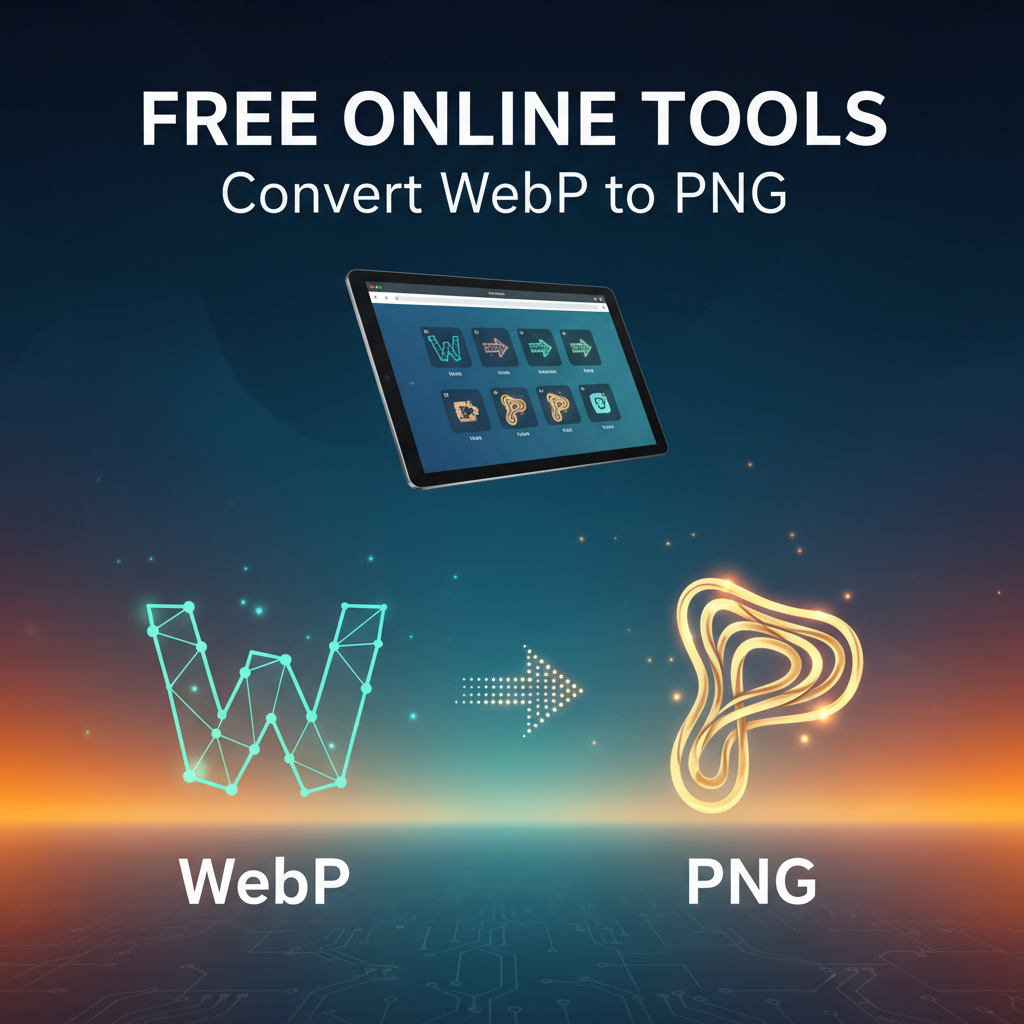
In today’s digital world, images play an essential role in enhancing visual communication, whether it’s for personal projects, professional portfolios, or business websites. One of the file formats gaining popularity due to its smaller size and quality is the WebP format. However, not all applications and devices support WebP, making conversion to more commonly used formats, such as PNG, a necessity. This article will explore the best free online tools that can help you convert WebP to PNG seamlessly.
Understanding WebP and PNG Formats
WebP is an image format developed by Google that provides lossy and lossless compression. This means that images can be saved in a smaller size while maintaining quality, making it ideal for web use. However, despite its advantages, certain platforms and applications still do not support WebP. In contrast, PNG (Portable Network Graphics) is widely recognized for its lossless compression, transparent background capabilities, and compatibility across various platforms.
Why Convert WebP to PNG?
There are several reasons to convert WebP images to PNG format:
- Compatibility: PNG files are universally supported across most devices and software applications, ensuring that your images display correctly regardless of platform.
- Quality Preservation: PNG maintains image quality without compromising clarity, which is particularly important for images with text or detailed graphics.
- Editing Flexibility: Many design and editing tools work better with PNG files, allowing for easier manipulation and editing.
Factors to Consider When Choosing a Converter
When selecting an online conversion tool, consider the following factors to ensure a smoother user experience:
- User-Friendly Interface: An intuitive design helps you navigate the tool quickly, even if you’re new to online conversions.
- Conversion Speed: Efficient tools should convert files without significant delays, allowing for quick processing.
- File Size Limits: Some services may limit the size of the WebP images you can upload. Choose one that fits your needs.
- Image Quality After Conversion: Ensure that the tool maintains the image quality after converting from WebP to PNG.
- Security: Opt for tools that assure you of data security and safe file handling.
Top Free Online Tools to Convert WebP to PNG
Here’s a comprehensive review of some of the best free online tools available to convert WebP files to PNG format.
1. Omni Tools
Omni Tools stands out as one of the most user-friendly and reliable conversion platforms available. Users of all experience levels can navigate its straightforward interface.
Features:
- Easy Upload: Simply drag your WebP files into the designated area.
- No File Size Limits: Upload and convert even large files without restrictions.
- Fast Conversion: Get your PNG files within seconds.
- Security Assurance: Omni Tools ensures that your privacy is protected, with uploaded files deleted after processing.
User Testimonials:
Many users praise Omni Tools for its efficiency and simplicity. One user remarked, “I was amazed at how quickly my images were converted. The quality was preserved perfectly!” Another highlighted, “I can easily convert multiple images in a single go—this tool is a game changer!”
2. Online-Convert
Online-Convert is another powerful platform catering to various conversion needs. With a straightforward interface, it allows users to select files easily.
Features:
- Convert from URLs: Users can convert images directly from a URL link.
- Advanced Settings: Allows for optional adjustments to output settings, giving more control over the final image.
- Supports Bulk Upload: Ideal for batch conversions, saving time significantly.
User Testimonials:
Users have noted its versatility: “The bulk upload feature was fantastic for my project!” another added, “It’s easy to use, and the results are always satisfying.”
3. EZGIF
EZGIF is well-known among web developers and designers for its extensive editing capabilities alongside conversion features.
Features:
- Image Editing: Offers basic editing tools for optimizing images before conversion.
- Animated GIF Support: Turn animated WebP images into multi-frame PNG files.
- GIF to PNG Conversion: This tool also helps convert GIFs to PNG for additional functionality.
User Testimonials:
Many professionals appreciate the versatility: “EZGIF is my go-to tool for quick edits and conversions!”
4. CloudConvert
CloudConvert is a highly recommended option thanks to its robust features and cloud-based approach, which allows working from any device.
Features:
- File Format Support: Supports a vast range of formats beyond just WebP and PNG.
- Cloud Storage Integration: Easily convert files from cloud services like Dropbox or Google Drive.
- API Integration: CloudConvert provides API access, which is beneficial for developers.
User Testimonials:
Users appreciate its flexibility: “I love how I can convert files from my Google Drive directly. Saves me so much time!”
5. Convertio
Convertio is another powerful tool that emphasizes ease-of-use coupled with impressive conversion speeds.
Features:
- Multiple Upload Options: Convert files uploaded from your device, URL, or even cloud storage.
- High-Speed Conversion: Converts files in a matter of moments, regardless of size.
- Mobile-Friendly: The responsive design ensures that users can convert files on mobile devices smoothly.
User Testimonials:
Users often comment on speed: “This is the fastest converter I’ve used!”
How to Convert WebP to PNG Using Omni Tools
Step-by-Step Guide
- Visit the Omni Tools website: Go to Omni Tools.
- Upload your WebP file: Drag your WebP image into the converted area or click to upload it.
- Select PNG as the output format: The tool will likely default to PNG.
- Start Conversion: Click the convert button to initiate the conversion process.
- Download your file: Once the conversion is complete, download your PNG image directly to your device.
Tips for Optimal Image Conversion
To ensure the best possible results when converting images, consider these additional tips:
- Check the Quality: Always verify the quality of the PNG after conversion to ensure it meets your standards.
- Consider Compression: While PNGs are lossless, they can still take up considerable space. Use online tools to compress PNG files if necessary.
- Keep Originals Safe: Before making conversions, maintain a backup of your original WebP images for reference.
FAQs
1. Can I convert WebP to PNG on my mobile device?
Yes, most online tools, including Omni Tools, are mobile-friendly, allowing users to convert images directly from their smartphones or tablets.
2. Will converting from WebP to PNG affect the image quality?
When using reliable conversion tools like Omni Tools, the PNG output should maintain the original image quality without noticeable loss.
3. Are there any limitations in terms of file size for online converters?
Different tools have varying file size limits. Omni Tools has no strict size restrictions, making it an excellent option for larger images.
4. How long does the conversion process take?
Conversion times vary depending on the tool you’re using and the file size. However, tools like Omni Tools typically provide conversions in just a few seconds.
5. Do I need to create an account to use these tools?
Most online conversion tools, including Omni Tools, do not require you to create an account, simplifying the process even further.
Conclusion
Converting WebP to PNG has never been easier with the variety of free online tools available today. Whether you choose Omni Tools for its user-friendly interface or other reputable platforms like Online-Convert or Convertio, you’ll find that these tools provide quick and reliable solutions for your image conversion needs. Remember to consider the specific features and benefits that each tool offers when choosing the right solution for your work.
For a hassle-free experience and efficient conversion from WebP to PNG, visit Omni Tools, a valuable resource among professionals looking to optimize their image files.