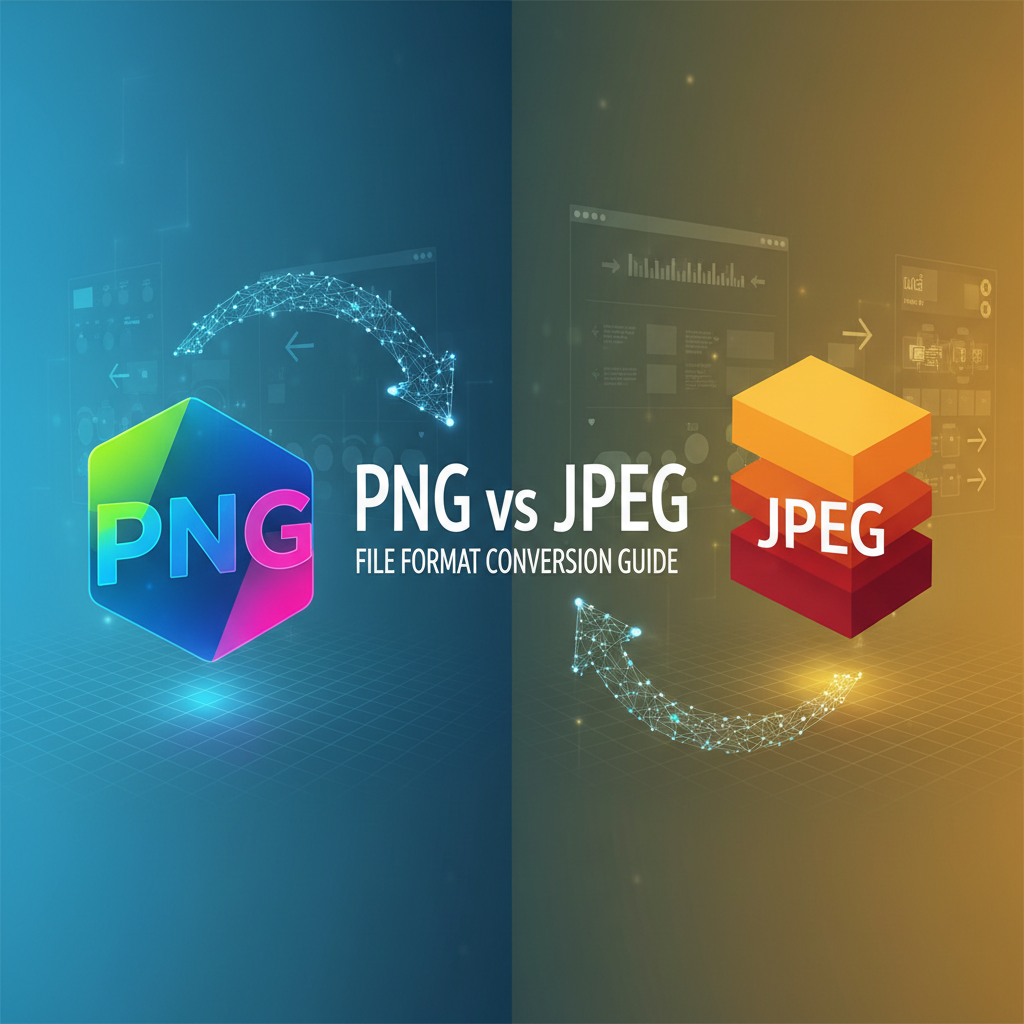
Understanding PNG vs JPEG file format conversion guide: Which File Format is Right for You?
When working with digital images, selecting the correct file format is critical for achieving the desired outcome in terms of quality, size, and functionality. Two of the most common formats are PNG (Portable Network Graphics) and JPEG (Joint Photographic Experts Group). Each format has its unique strengths and weaknesses, making them suitable for different purposes. This article serves as a comprehensive PNG vs JPEG file format conversion guide, including in-depth comparisons, usage guidelines, and step-by-step conversion instructions to ensure you get the best out of your images.
What is PNG?
PNG is a raster graphics file format that supports lossless data compression. This means that images retain their original quality, even after being compressed. PNG is particularly beneficial for images with text, line art, and graphics that require a transparent background. With its ability to support millions of colors and transparency, PNG is a preferred choice for web graphics and images that require clarity and detail.
What is JPEG?
JPEG, on the other hand, is a lossy compression format, which reduces file sizes by discarding some data from the image. This makes JPEG ideal for photographs and images where variations in color and detail aren’t as noticeable. While JPEG does achieve smaller file sizes, this can come at the expense of image quality, especially if the image is compressed multiple times. JPEG is the go-to format for web photos and social media due to its balance between quality and size.
Key Differences Between PNG and JPEG
Understanding the differences between PNG and JPEG can help you choose the right format for your needs:
- Compression Type: PNG uses lossless compression, maintaining quality; JPEG uses lossy compression, which may degrade quality.
- Transparency Support: PNG supports transparency while JPEG does not.
- File Size: PNG files are generally larger than JPEG files due to the lossless compression.
- Best For: PNG is better for graphics, logos, and images needing transparency; JPEG is suitable for photographs.
When to Use PNG and When to Use JPEG?
Knowing when to use each format can greatly enhance your workflow. Here are some guidelines:
When to Use PNG
- Graphics with Text and Lines: Use PNG for clear visibility and sharp lines.
- Images Needing Transparency: If you need transparent backgrounds, PNG is necessary.
- Images Requiring High Quality: For print materials or detailed images that won’t undergo compression, PNG is ideal.
When to Use JPEG
- Photographs: Use JPEG for photos where slight losses in quality are acceptable for smaller file sizes.
- When Balancing Quality and Size: JPEG is suitable for websites and platforms that emphasize speed and loading times.
- Less Complex Images: When images don’t require transparency or excessive detail.
How to Convert Between PNG and JPEG
If you need to convert images between these two formats, don’t worry; the process is straightforward. Below is a step-by-step guide to help you achieve the conversion while maintaining quality.
Converting PNG to JPEG
- Open the Image: Open your PNG file in any photo editing software or online tool.
- Select “Save As”: After editing (if necessary), click on “File” and select “Save As” or “Export.”
- Choose JPEG Format: From the format options, select JPG or JPEG.
- Adjust Quality Settings: Most software will let you choose the quality of your JPEG file—higher quality means a larger file size.
- Save Your File: Choose your desired save location and click Save; your PNG is now a JPEG!
Converting JPEG to PNG
- Open the Image: Use an editing program or an online converter to open your JPEG file.
- Select “Save As”: Click on “File” and choose “Save As.”
- Choose PNG Format: Select PNG from the list of available formats.
- Save Your File: Choose the location to save and click Save; you now have a PNG file!
Using Online Tools for Conversion
If you prefer a less manual process, online tools can facilitate quick conversions. One highly recommended solution is Omnitools, where you can convert your images effortlessly. Simply upload your desired image file, select the target format, and download your converted file instantly.
Maintaining Quality During Conversion
To preserve the quality of images during conversion:
- Avoid excessive compression, especially when saving JPEG images.
- Use dedicated image processing software or reputable online tools like Omnitools.
- Consider the intended use of the image. For web use, a balance between quality and file size is necessary, while print requires higher fidelity.
Practical Application of Conversion
Consider scenarios where one might need to convert between PNG and JPEG:
- Web Development: Web designers may need PNG images for logos but prefer JPEG for showcasing photographs to ensure quicker load times.
- Social Media: When posting on platforms with size limits, converting images to JPEG can be beneficial.
- Graphic Design: Designing graphics may require PNG format for transparency, while final exports for customers might be better served in JPEG to minimize size.
Common Misunderstandings about PNG and JPEG
Many individuals have misconceptions regarding these file formats. Here are some clarifications:
- “JPEG Is Always Better”: Not true! JPEG is ideal for photographs, but PNG excels in crisp graphics and images needing transparency.
- “PNG Files Are Too Large”: While PNGs are larger, their benefits in retaining quality make them invaluable for certain applications.
- “All Image Programs Handle Both Formats Equally”: Some image editors may have limitations on format handling or may perform differently; ensure the tool you choose meets your needs.
FAQ
What are the main advantages of using PNG over JPEG?
PNG files support transparency and are lossless, meaning they retain image quality better than JPEGs, which can lose detail.
Can I convert a PNG file to JPEG and still maintain high quality?
Yes, you can convert a PNG file to JPEG and maintain good quality by selecting high-quality settings during the conversion process.
Is it possible to convert JPEG to PNG without losing details?
Yes, converting from JPEG to PNG is lossless; however, you cannot recover lost quality from the original JPEG file.
What’s the best online tool for PNG to JPEG conversion?
One of the best online tools for this purpose is Omnitools, which offers an efficient and user-friendly experience.
Are there any drawbacks to using JPEG?
The main drawback of JPEG is the lossy compression, which can result in a degradation of image quality after multiple edits and saves.
Conclusion
In conclusion, understanding the differences between PNG and JPEG is essential for anyone working with digital images. Each format offers unique advantages tailored to specific needs. Knowing when to use each format and how to convert between them can enhance your projects and ensure that your images meet professional standards. Use tools like Omnitools for easy conversions and always prioritize image quality, so your visuals look their best, whether on a website or in print. Choose wisely, and your graphics will always shine!