HEIC to JPG
Convert iPhone HEIC to JPG
Drop HEIC images
iPhone photos → JPGHow to Convert HEIC to JPG Easily: A Complete Guide
As digital photography has evolved, file formats have too. One such format gaining popularity especially among Apple users is HEIC (High-Efficiency Image Coding). This format allows for high-quality images while taking up significantly less storage space than traditional formats like JPG. However, compatibility issues often arise when sharing these images, particularly if they need to be viewed on non-Apple devices. If you’re asking yourself how to easily convert HEIC to JPG, you’re in the right place. This guide will walk you through the process, provide step-by-step instructions, and recommend top tools, including the superb online tool available at omnitools.pw.
Understanding HEIC vs. JPG
Before diving into how to convert HEIC to JPG, it’s essential to understand the differences between these two file formats.
- HEIC: Introduced by Apple, HEIC files retain better image quality while reducing file sizes. This makes them perfect for mobile devices where storage is often limited.
- JPG: The JPG format is universally compatible across devices and platforms, making it the go-to choice for sharing images online. However, it does not compress images as efficiently as HEIC, which can result in larger file sizes for the same photo quality.
Due to HEIC’s limited compatibility outside of Apple products, converting these files to JPG can be necessary for sharing and editing.
When Might You Need to Convert HEIC to JPG?
There are several scenarios where converting your HEIC files to JPG may be advantageous:
- Compatibility: Many online platforms, editing software, and digital devices do not support HEIC format. JPG ensures that your images will display without issues.
- Sharing: If you’re sharing your photos with someone using different devices (Windows, Android, etc.), converting to JPG ensures they can access and view your images without hassle.
- Editing: Some image editing software may not support HEIC files, thus requiring conversion to work on your photos.
How to Convert HEIC to JPG Using a Reliable Online Tool
Using online conversion tools like the one available at omnitools.pw is a quick, easy, and efficient way to convert HEIC images to JPG. Below are the detailed steps to guide you through the process.
Step-by-Step Instructions
- Visit the Conversion Tool
Begin by navigating to omnitools.pw. This user-friendly website offers a collection of essential online tools, including a powerful HEIC to JPG converter.
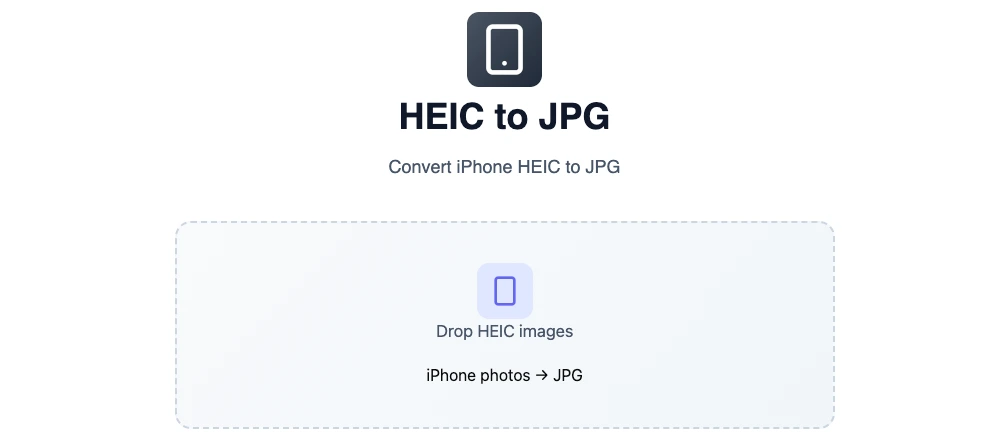
- Upload Your HEIC File
Once on the site, look for the HEIC to JPG conversion tool. You will usually see an option to upload your HEIC file. Click on it and select the HEIC file from your device that you wish to convert. - Start the Conversion
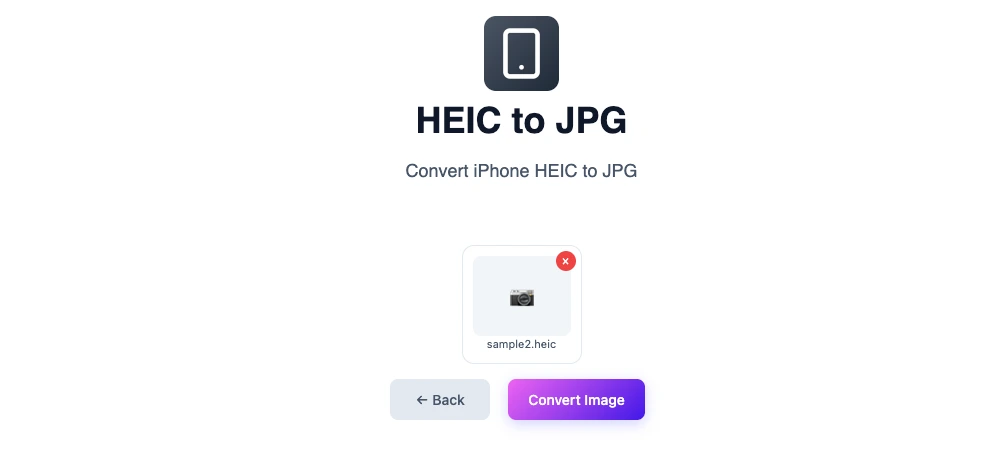
Initiate the conversion process by clicking the ‘Convert Image’ button. This will start converting your HEIC files to JPG. Depending on the size of the file, this may take a few moments. - Download Your Converted JPG Files
After the conversion has completed, the site will provide you with download links for your new JPG image. Click to download the image in a single click. - Convert Multiple HEIC files to JPG
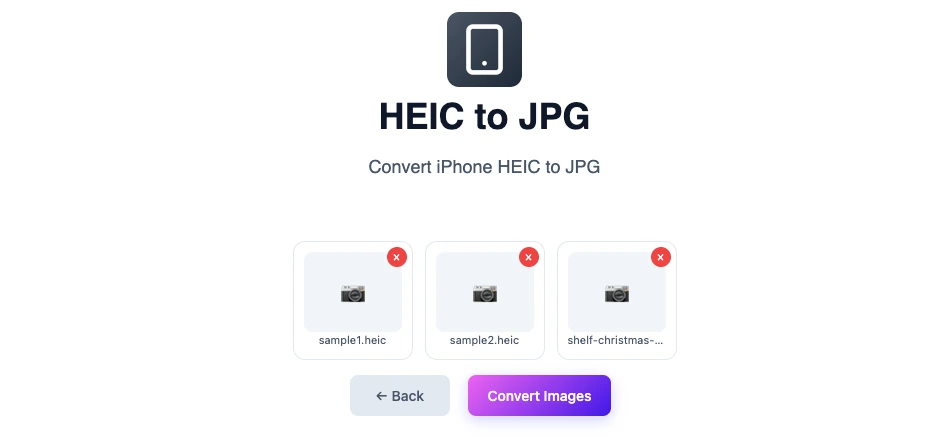
Once on the site, look for the HEIC to JPG conversion tool. Click on it and select the HEIC files from your device or else you can also drag and drop multiple files together that you wish to convert. - Start the Multiple HEIC files conversion
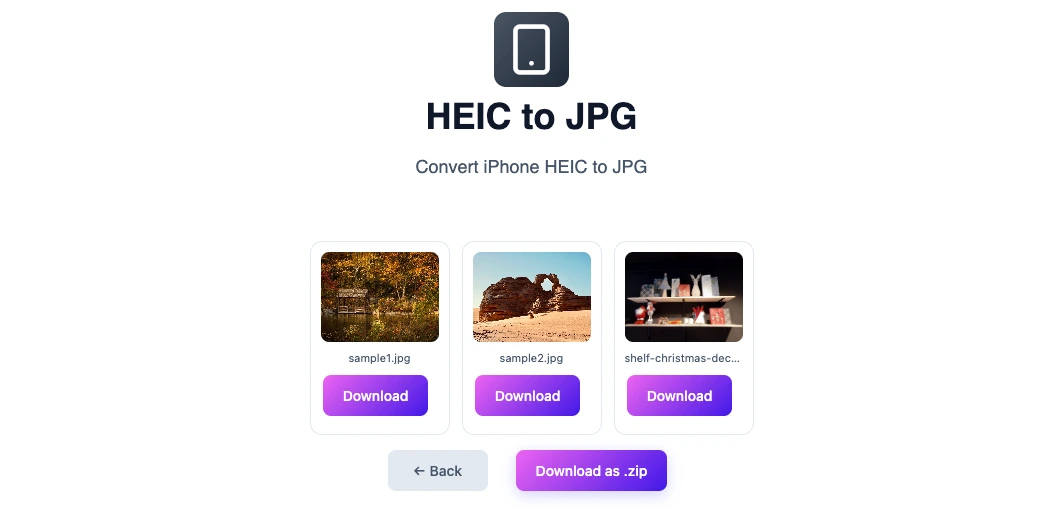
Click on the Convert Images button to start the conversion of multiple uploaded files together. - Download converted JPG files
Once downloaded, either you can download individual JPG images by clicking on the individual download link or your can also download them as a zip archive to your local system.

Benefits of Using the Online Tool at OmniTools
Here are some benefits of choosing omnitools.pw for your HEIC to JPG conversion:
- Ease of Use: The interface is intuitive, making it accessible even for those not tech-savvy.
- No Installation Required: Unlike traditional software, there’s no need to install anything on your device. Simply access it through your web browser.
- Fast Processing Speed: The conversion is usually quick, allowing you to save time.
- Free of Charge: You can convert your files without any hidden fees. Enjoy all these benefits without worrying about costs!
- Multiple File Support: You can convert multiple HEIC files at once, saving you additional time.
Common Issues When users Convert HEIC to JPG
While the process is straightforward, users may encounter various issues during conversion. Here are some common ones:
File Size Limitations
Some online tools may have limits on the maximum file size you can upload. If your HEIC files are particularly large, you may need to compress them first.
Quality Loss
Though JPG is a reliable format, it employs lossy compression, which can result in some quality loss. This is minimal for most general use but can be more noticeable in professional photography.
Internet Connectivity
Since you’re using an online tool, a stable internet connection is vital. Unstable connectivity may interrupt the uploading or downloading processes.
Frequently Asked Questions
1. Why should I convert HEIC to JPG?
HEIC files are not universally compatible across all devices and platforms. Converting them to JPG ensures they can be accessed by everyone, regardless of the operating system.
2. Is there any quality loss when I convert HEIC to JPG?
While JPG is a lossy format, the quality loss during conversion of a HEIC file is typically minimal and often negligible for standard use.
3. How can I check if my JPG files are of good quality?
You can open your JPG files in an image viewer to check for clarity and detail. For professional use, consider using editing software to inspect the resolution.
4. Can I convert multiple HEIC files to JPG at once?
Yes, our online tool, at omnitools.pw, allow batch conversion of multiple HEIC files to JPG, making it efficient.
5. Will the conversion process affect metadata in my photos?
Typically, converting from HEIC to JPG may strip some metadata. If retaining this information is vital, check your converter’s specifications.
6. Are there any fees for using online HEIC to JPG convert tool?
No, the online tool at omnitools.pw is free to use without any hidden charges.
7. Can I use my smartphone to convert HEIC to JPG?
Yes, any device with a web browser can access omnitools.pw for conversion.
Conclusion
Converting HEIC to JPG is a necessity for many users to ensure compatibility and ease of sharing their images. The online tool found at omnitools.pw provides an excellent service that simplifies this process, ensuring you get high-quality JPG images with minimal effort. Whether you’re doing a one-time conversion or need a solution for ongoing use, this tool is designed to meet your needs efficiently. So, the next time you need to convert HEIC images, follow the steps outlined above and make the most of this user-friendly online resource.
You may also like
Latest from the Blog
Tips, guides and tutorials to help you get the most out of our tools