TIFF to PNG Converter
Convert TIFF to PNG with high quality using our free online tool, compatible with all devices.
Drop TIFF images
Convert to JPG/PNGHow to Convert TIFF to PNG: A Comprehensive Guide for Professionals
In today’s digital age, professionals frequently encounter various image formats, each serving unique purposes. Two commonly used formats are TIFF (Tagged Image File Format) and PNG (Portable Network Graphics). This article delves into understanding these formats, their specific use cases, and the reasons why converting TIFF files to PNG can be beneficial. We’ll cover the tools available for conversion, a step-by-step guide, best practices for maintaining image quality, and real-world applications of TIFF to PNG conversion.
Introduction to TIFF and PNG Formats
TIFF is a versatile image format that can store high-quality images and is widely used in various fields, especially in photography and publishing. Its flexibility supports multiple layers, color depths, and compression options, making it a preferred choice for professionals who prioritize image quality.
On the other hand, PNG is a format designed for the web, supporting lossless compression and transparency features. PNG files are ideal for images with clear lines, text overlays, and graphics, which is why they are prevalent in web design and user interface development.
Professionals often need to convert TIFF files to PNG, especially when preparing images for online use, as PNG files generally reduce loading times and enhance compatibility across different platforms and devices.
Why Convert TIFF to PNG?
- Advantages of PNG: While TIFF retains high quality, PNG files are smaller and often more suitable for on-screen viewing. They support transparency, which is crucial for graphic designers and web developers.
- File Size: TIFF files can be significantly larger than their PNG counterparts, making PNG preferable for web publishing, where bandwidth is a concern.
- Compatibility: PNG format is supported by modern browsers and applications, ensuring broader accessibility for users and consistency in visual representation.
Tools for Converting TIFF to PNG
There are various tools available for efficient conversion from TIFF to PNG, which can be classified into three categories:
- Online Converters: These tools, like the one at OmniTools, allow easy conversion without the need to install software. They are user-friendly and cost-effective.
- Desktop Software: Applications like Adobe Photoshop and GIMP offer robust features for advanced users who need more than just basic conversion.
- Command-Line Tools: ImageMagick is a powerful command-line utility favored by developers for batch processing images quickly.
Comparison Table of TIFF to PNG Conversion Tools
| Tool | Type | Ease of Use | Batch Processing | Cost |
|---|---|---|---|---|
| OmniTools | Online | Very Easy | Yes | Free |
| Adobe Photoshop | Desktop | Moderate | Yes | Paid |
| GIMP | Desktop | Easy | No | Free |
| ImageMagick | Command-Line | Hard | Yes | Free |
Step-by-Step Conversion Process
How to Convert TIFF to PNG Using OmniTools
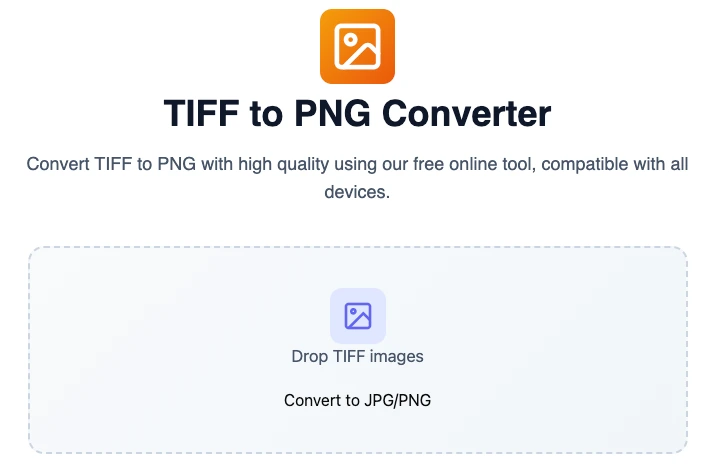
- Visit the OmniTools Website: Go to OmniTools.

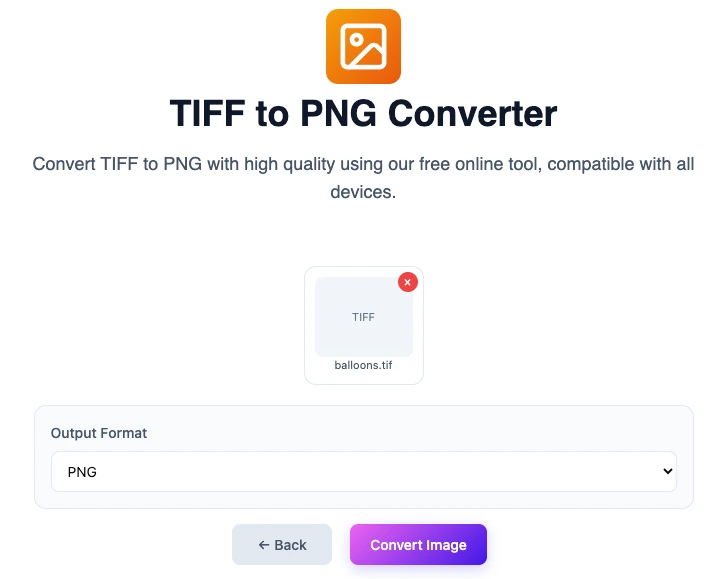
- Upload Your TIFF File: Click on the upload button and select the TIFF file you wish to convert from your computer.
Select PNG Format: Choose PNG from the dropdown menu as your desired output format.
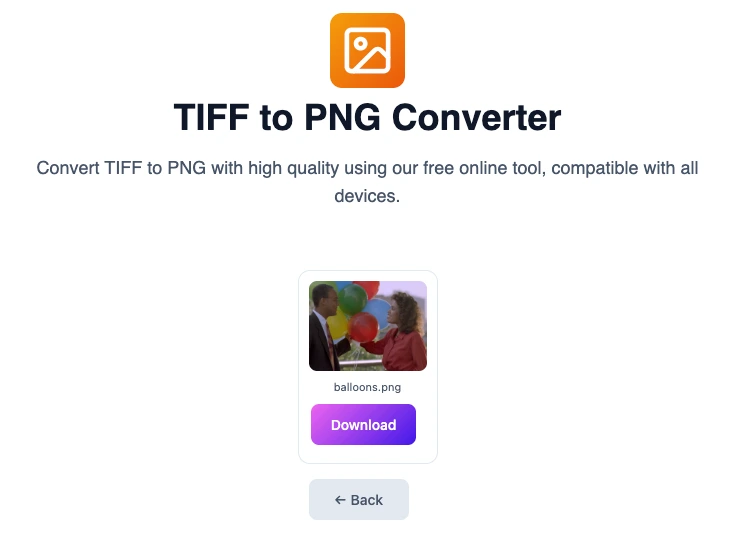
Click Convert Image: Press the convert button to start the process. - Download Your PNG File: Once the conversion is complete, download your new PNG file easily.
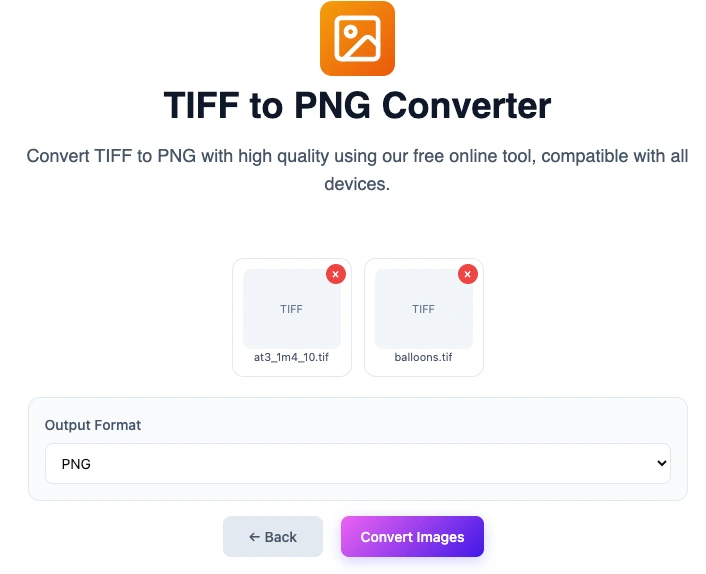
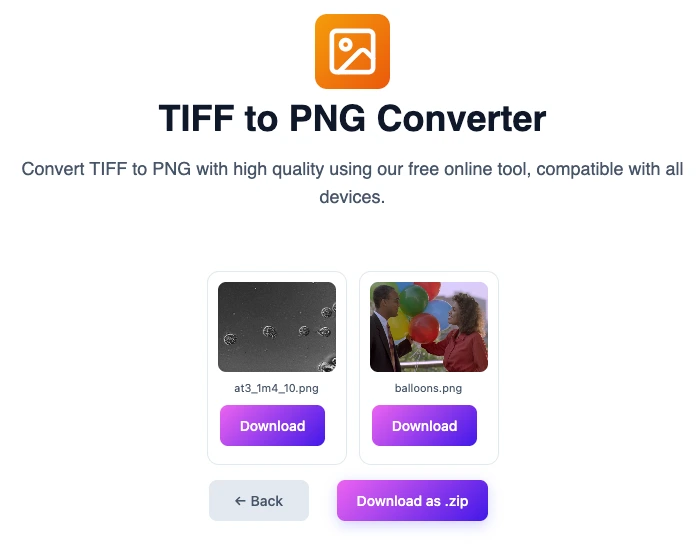
- Bulk convert tiff files : Choose to upload or drag and drop multiple tiff filers to prepare your tiff images for a lossless image conversion to PNG format.
- Download converted files: Choose to download individual images or all converted images as a zip archive together.
Best Practices for Image Conversion
To ensure the highest quality during conversion, consider the following best practices:
- Maintain Resolution: Keep an eye on the resolution settings during conversion to avoid losing image quality.
- Check for Transparency: If your TIFF file contains transparency and you require that in your PNG, ensure the conversion process preserves this aspect.
- Review Final Output: Always check the final PNG file to ensure it meets your quality expectations and serves its intended purpose.
Real-World Applications
The conversion of TIFF files to PNG is prevalent across various industries. Here are some fields where such conversions are essential:
- Photography: Photographers often convert TIFF files (which may include high-resolution images) to PNG for web use, allowing for high-quality presentations on portfolios or gallery websites.
- Graphic Design: Designers use PNG files for creating graphics that require transparency and high quality. This is particularly relevant for logos and UI elements.
- Publishing: During the pre-press phase, publishers convert images to PNG format, ensuring they look great in their digital and print materials.
FAQ
1. What is the main benefit of using PNG format?
PNG format offers lossless compression and supports transparency, making it ideal for high-quality images used on the web.
2. Can I convert multiple TIFF files to PNG at once?
Yes, many online converters, including OmniTools, support batch processing to convert multiple files simultaneously.
3. Is there any loss in quality when converting TIFF to PNG?
No, PNG is a lossless format, so converting TIFF to PNG maintains the original quality of the image.
4. What if my TIFF file has layers or text?
While layers in a TIFF file are not retained in a PNG conversion, text and other elements should remain clear in the final PNG image. It’s essential to check the output.
5. Are there any specific settings I should use when converting?
It’s best to keep the resolution and color settings similar to the original TIFF to ensure consistent quality in the PNG.
6. Is OmniTools free to use?
Yes, OmniTools is free and provides an easy-to-use platform for converting TIFF images to PNG.
Conclusion
Converting TIFF files to PNG format is not just a matter of convenience but essential for ensuring that images are displayed correctly and efficiently in various digital environments. With tools like OmniTools, this process can be accomplished quickly and effectively. Whether you’re a photographer, a graphic designer, or involved in publishing, mastering the conversion process will enhance your workflow and the quality of your presentations.
Take action today—explore the tools recommended above and start converting your TIFF files to PNG format for better efficiency and quality in your professional projects. Don’t forget to check out OmniTools for a quick and easy solution!
You may also like
Latest from the Blog
Tips, guides and tutorials to help you get the most out of our tools