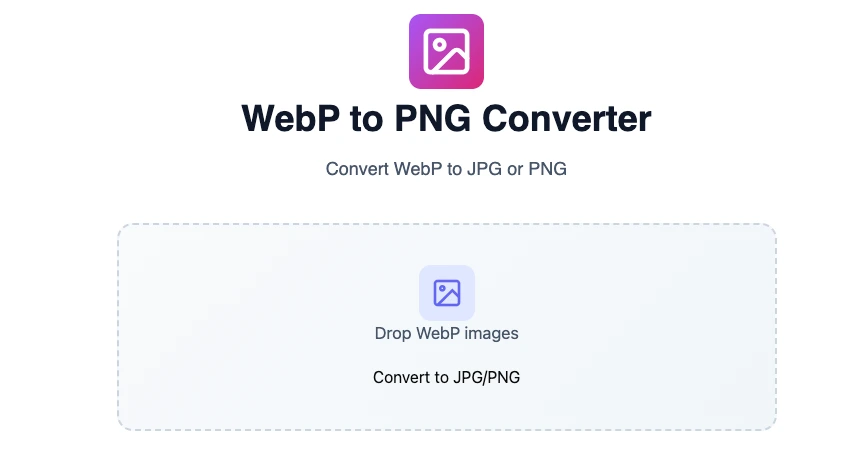
WebP to PNG Converter
Convert WebP to JPG or PNG
Drop WebP images
Convert to JPG/PNGConvert from WebP to PNG: A Comprehensive Guide
In the ever-evolving world of digital imaging, understanding the intricacies of various file formats is essential for professionals and content creators. Among these formats, WebP and PNG hold significant importance, each with its unique benefits. In this guide, we’ll delve into the process of converting images from WebP to PNG, exploring the reasons for conversion, the best tools available, and how to ensure quality preservation throughout the process.
Understanding Image Formats
Image formats can heavily influence the presentation and performance of digital media. The WebP format, developed by Google, is designed to produce smaller file sizes while maintaining impressive image quality. This makes it ideal for web use since smaller files can enhance page loading speed.
On the other hand, PNG (Portable Network Graphics) is a lossless format that excels in preserving image quality, particularly when it comes to details and transparency. While WebP supports both lossy and lossless compression, there are scenarios where PNG is favored, such as when transparency is crucial or in compatibility with older systems lacking WebP support.
When to Use PNG Over WebP
Despite WebP’s advantages in file size and web performance, there are instances where PNG may be the better choice. Here are some use cases:
- Transparency Needs: PNG supports transparent backgrounds, making it suitable for logos and images requiring clean edges.
- Compatibility Issues: Some browsers and platforms may not support WebP, necessitating the use of PNG to ensure universal accessibility.
- Editing and Retouching: PNG’s lossless compression is beneficial when images are frequently edited or retouched, as repeated saving in lossy formats can degrade quality.
Why Convert from WebP to PNG?
Converting images from WebP to PNG can be imperative in professional graphics work and web design. Here are practical advantages:
- Lossless Compression: PNG retains details during compression, making it ideal for high-quality images.
- Wider Compatibility: PNG files can be opened across various platforms and applications, ensuring no hiccups regardless of software used.
- Transparency: If your project demands transparent backgrounds, PNG remains the go-to format for achieving that.
Understanding these elements is crucial as the choice between formats can influence website performance and user experience significantly. Tools and techniques for conversion can equip professionals with the versatility needed in their workflows.
How to Convert WebP to PNG: Step-by-Step
Using the Online Tool at OmniTools
For a straightforward solution, OmniTools provides an intuitive platform for converting images online. Here’s how to use it:
- Visit https://omnitools.pw/.
Upload your WebP file by clicking on the upload button on the homepage.
- Select the output format as PNG from the options available.
Click on the Convert Image button. - Once the conversion is complete, download your PNG file directly to your device.
- You can also do a bulk convert from webp to png images by selecting multiple webp files or by drag and drop multiple webp images to this Online WebP to PNG converter.
Once images finished uploading, select the image type to PNG and click on the Convert Images button. - Once images finishes conversion, either download individual converted PNG image or download them all in bulk as a zip archive.
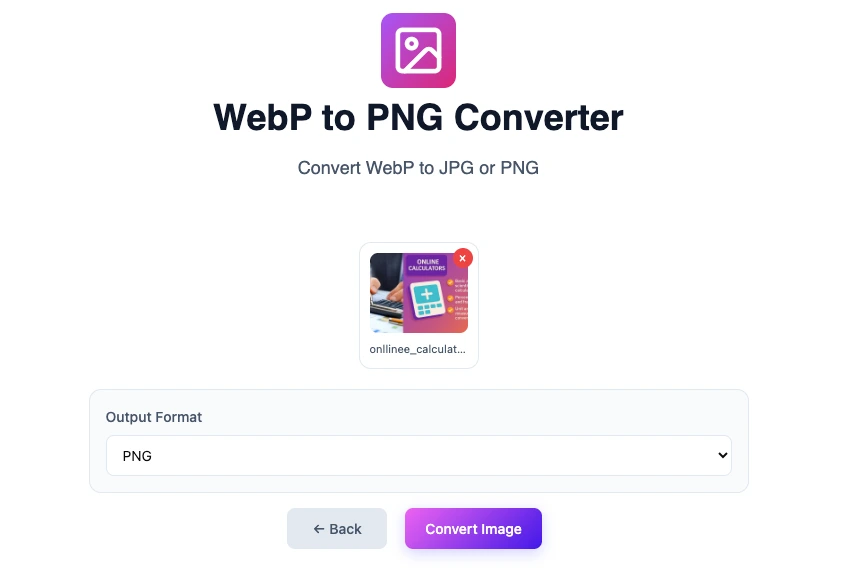
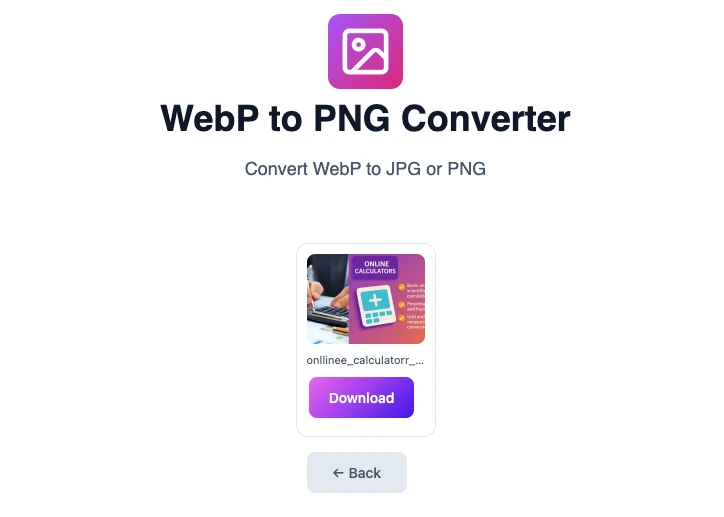
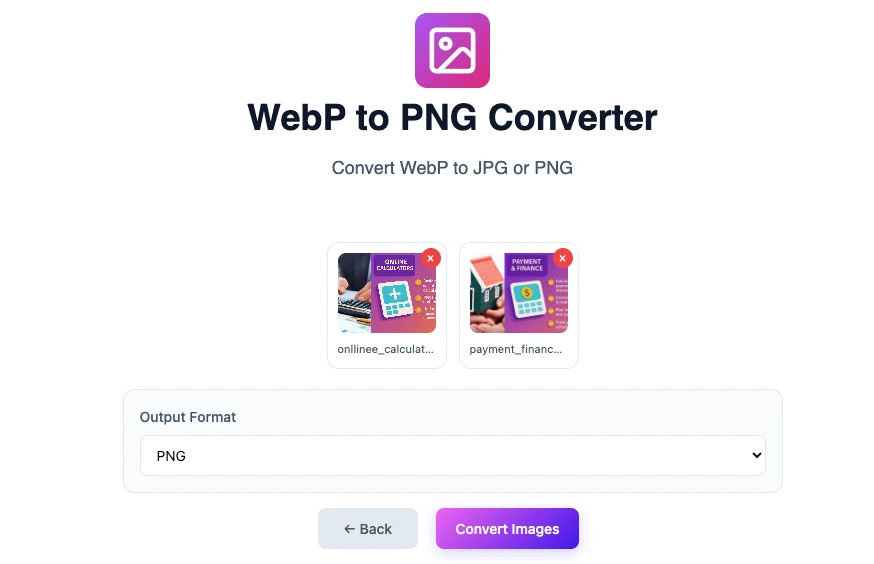
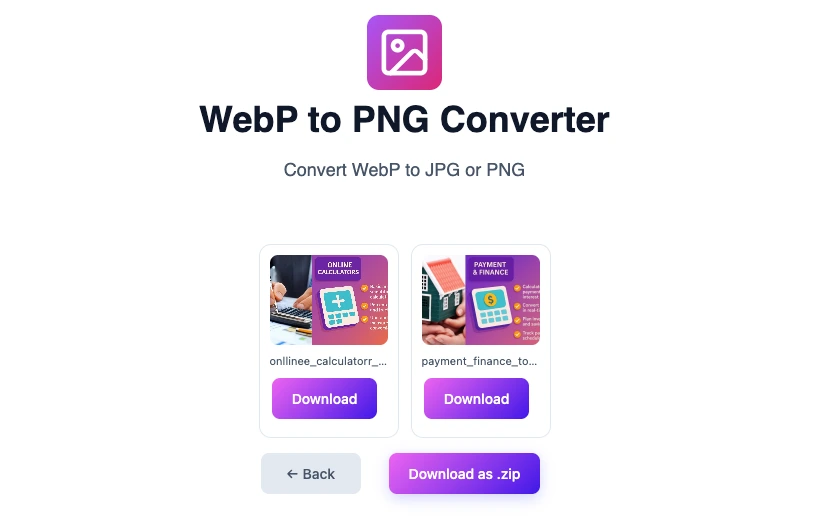
This method is not only fast but also ensures that the quality of your image remains intact throughout the conversion process to match the absolute Web performance optimization.
Using Desktop Software
If you prefer offline solutions, applications like GIMP and Photoshop are robust options for converting WebP to PNG. While it might take a bit more time to set up, these tools offer advanced features such as editing capabilities before conversion.
Quality Preservation Tips
During conversion, particularly from WebP to PNG, it’s important to maintain the highest image quality. Here are some tips to ensure this:
- Preserve Resolution: Be mindful of the resolution settings in your conversion tool. Higher resolutions will yield better quality.
- Check Color Profiles: Ensure that the color profile of the original image is preserved, to maintain color accuracy.
- Use Lossless Settings: If available, select lossless compression options to avoid quality loss during conversion.
Tool Comparison for Conversion
When choosing a conversion tool, it’s essential to weigh the features against your needs. Here’s a comparison of some popular options:
Online Tools
- OmniTools:
- Pros: Easy to use, fast conversion, no software installation needed.
- Cons: Requires internet access, dependent on upload/download speeds.
Desktop Applications
- GIMP:
- Pros: Free, comprehensive editing capabilities, supports various formats.
- Cons: May require a learning curve for new users.
- Photoshop:
- Pros: Professional-grade features, extensive support and community.
- Cons: Subscription-based, more expensive than other options.
Best Practices for Image Management
After converting your images to PNG, managing them efficiently can save you time and headaches in the long run. Here are some best practices:
- Consistent Naming Conventions: Use clear and consistent naming schemes to identify your files easily.
- Organize Files: Create dedicated folders for different projects, ensuring ease of access.
- Optimize for the Web: Even post-conversion, make sure your PNG files are as optimized as possible. Consider tools that reduce file size without compromising quality.
FAQ
What is the main difference between WebP and PNG?
WebP is a modern image format that provides superior compression techniques, allowing for smaller file sizes while retaining image quality. In contrast, PNG is a lossless format that preserves image quality and supports transparency, making it ideal for graphics requiring fine details.
Why might I need to convert WebP to PNG?
Converting WebP to PNG may be necessary for compatibility purposes, especially for users on platforms or software that do not support WebP files, or when high-quality images with transparent backgrounds are required.
Can I lose image quality when converting from WebP to PNG?
If done correctly, converting from WebP to PNG should not result in quality loss since PNG is a lossless format. However, it’s essential to ensure you use quality-preserving settings in your conversion tool.
Are there any free tools for converting WebP to PNG?
Yes, there are several free online tools available, such as OmniTools, that allow you to convert images from WebP to PNG easily and without cost.
Is PNG better than WebP for all uses?
No, PNG is not necessarily better than WebP for all uses. While PNG excels in quality and transparency support, WebP is often preferred for its reduced file size, which can improve loading times on the web.
What should I consider when choosing a conversion tool?
When selecting a conversion tool, consider factors such as ease of use, speed, available features (like batch processing), and whether it preserves image quality effectively.
Can I convert multiple files at once?
Many online tools, including OmniTools, allow batch processing, making it easy to convert multiple WebP files to PNG simultaneously.
What if my images are too large to upload?
If your images are too large to upload to an online tool, consider compressing them or using desktop software that handles larger files more efficiently.
Conclusion
Understanding how to convert from WebP to PNG is a crucial skill for professionals working in web design, graphic arts, and digital content creation. By leveraging the strengths of each format and utilizing tools like OmniTools, you can streamline your workflow while maintaining image quality and ensuring compatibility across various platforms.
You may also like
Latest from the Blog
Tips, guides and tutorials to help you get the most out of our tools