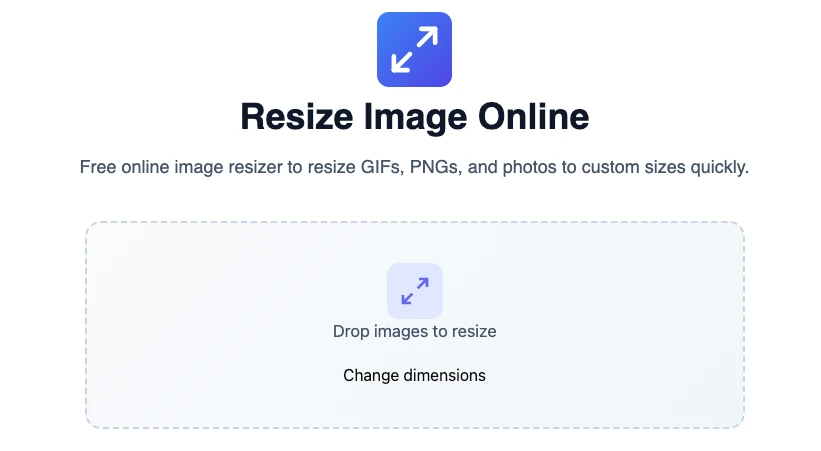
Resize Image Online
Free online image resizer to resize GIFs, PNGs, and photos to custom sizes quickly.
Drop images to resize
Change dimensionsResize Image: A Comprehensive Guide
Looking to resize an image quickly and efficiently? Whether you need to adjust a PNG, JPEG, or GIF, doing so without sacrificing quality is crucial. Plus, with options to bulk resize your images, you can save time while ensuring all your visuals meet your requirements.
Why Resize Images?
Images come in various sizes, but larger files can slow down your website and affect user experience. This is why knowing how to resize images correctly is an essential skill. By compressing files without losing clarity, you facilitate faster load times, improving SEO and visitor retention.
Benefits of Resizing
- Faster loading times: Smaller files load quicker, enhancing user experience.
- Reduced bandwidth usage: Smaller images consume less data, beneficial for mobile users.
- Improved SEO: Optimized images can boost your website’s performance on search engines.
How to Resize an Image Online for Free
Resizing an image online is simple and incredibly effective. Here’s a step-by-step guide on how you can do it.
How to Use an Online Image Resizer
- Visit a trusted online image resizer, such as Omnitools. Upload your image file (supports PNG, JPEG, GIF).

- Select your desired dimensions. You can specify size in pixels. Click the Resize Image Button
- Download the resized image to your device.
- Build images can also be resized together. Select to upload or drag and drop multiple images to the online image resizer tool.
- Change the image dimension in pixels as per requirement and click Resize Images button.
- Once the resizing process completes, either download individual images or download them all as a zip archive.
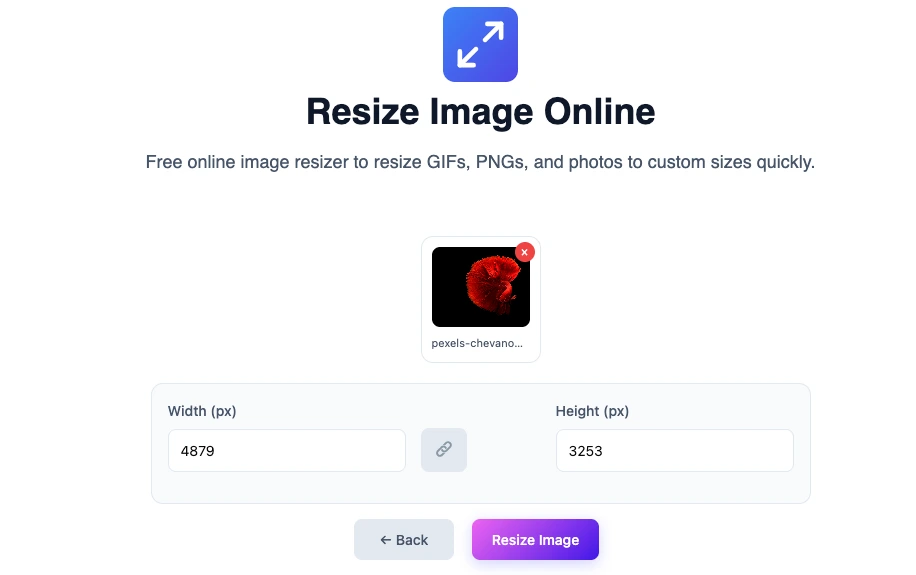
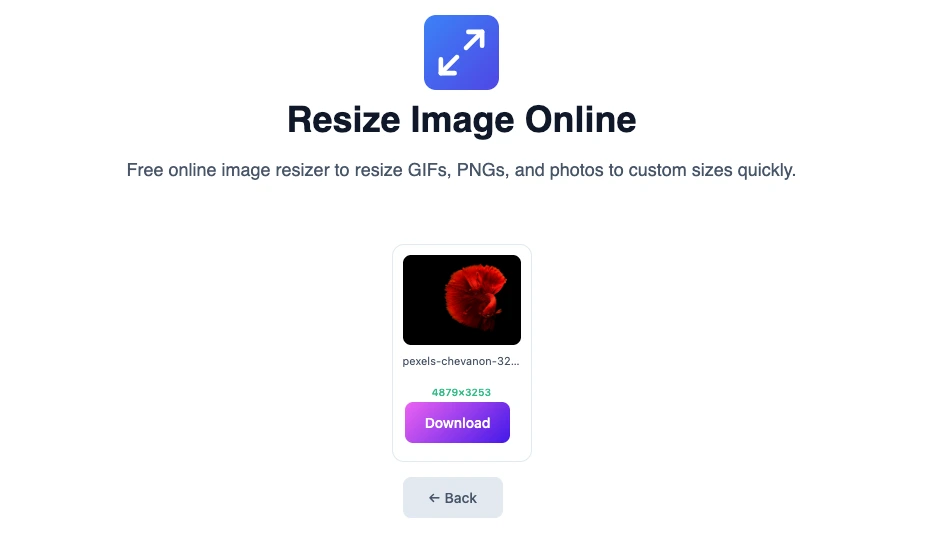
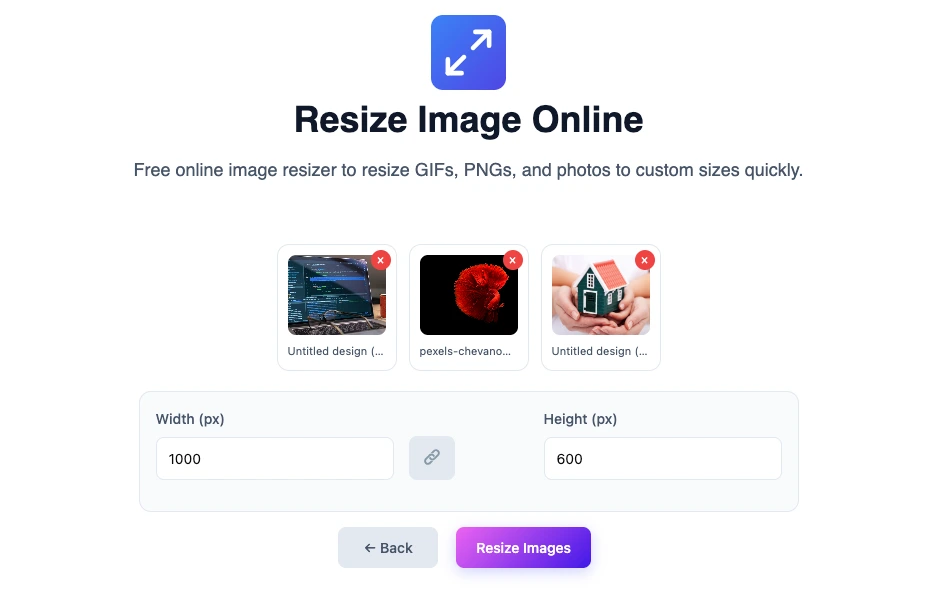
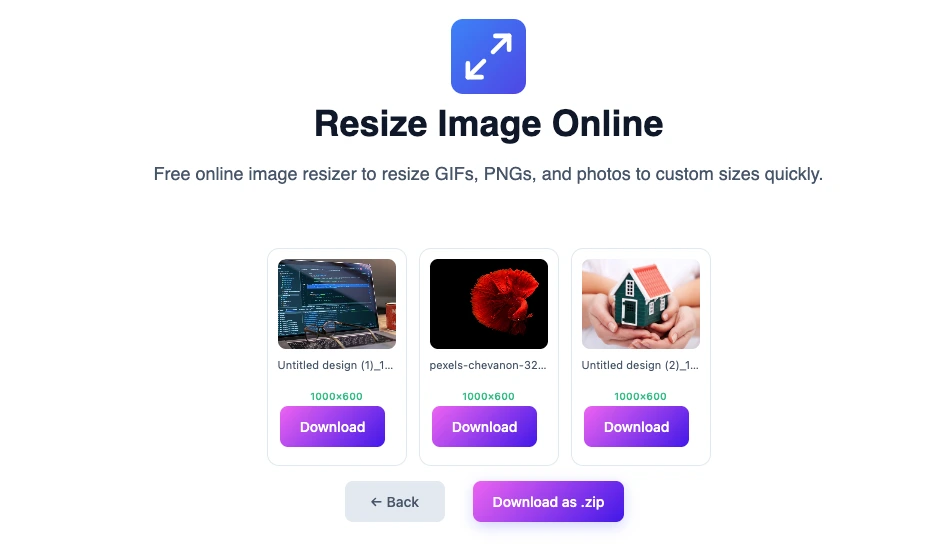
By using omitool’s easy image resizing tool and by following this step by step process anyone can easily change the dimension of image to their requirement.
Common Image Formats and Their Resizing Considerations
Each image format has unique characteristics. Here’s a breakdown:
PNG
PNGs are preferred for images requiring transparency. When resizing, ensure to maintain the quality, as excessive compression can lead to blurriness.
JPEG
JPEGs are great for photographs but might lose detail when resized too aggressively. Use moderate resizing to keep them crisp.
GIF
Usually, GIFs serve animated content; however, resizing can affect the animation speed and quality. Resize carefully to avoid pixelation.
Bulk Resizing Options
Have a batch of images that need resizing? Many online tools support bulk resizing, allowing you to resize multiple images at once.
Benefits of Bulk Resizing
- Saves time and effort.
- Consistency across all images retained.
- Efficient for website updates or social media posts.
FAQs
What Are the Best Settings for Resizing Images?
Optimal settings depend on the image usage. For web content, ensure the width is under 1920 pixels, aiming for quality preservation.
Is there any risk in resizing images?
Yes, excessive resizing (especially downscaling) may lead to loss of essential details. Always keep backups!
Can I resize images without an internet connection?
Absolutely! Programs like Photoshop or GIMP allow offline image resizing.
Conclusion
Knowing how to properly resize images is crucial for maintaining a professional standard across your digital assets. With the right tools, like those available online, this task becomes quick and straightforward. Don’t compromise on quality—simply adjust your images for an optimized experience.
You may also like
Latest from the Blog
Tips, guides and tutorials to help you get the most out of our tools